ThreeFold Connect Identity
The verification process in ThreeFold Connect ensures the security and authenticity of user accounts through a comprehensive identity verification system integrated directly into the app. This includes email verification, phone verification, and Know Your Customer (KYC) procedures as part of the wallet onboarding process.
Overview
ThreeFold Connect verification provides:
- Email Verification: Secure email address confirmation
- Phone Verification: SMS-based phone number verification
- Identity Verification: Integrated KYC process for wallet onboarding
- Document Verification: Government ID verification through secure systems
- Biometric Verification: Selfie matching for identity confirmation
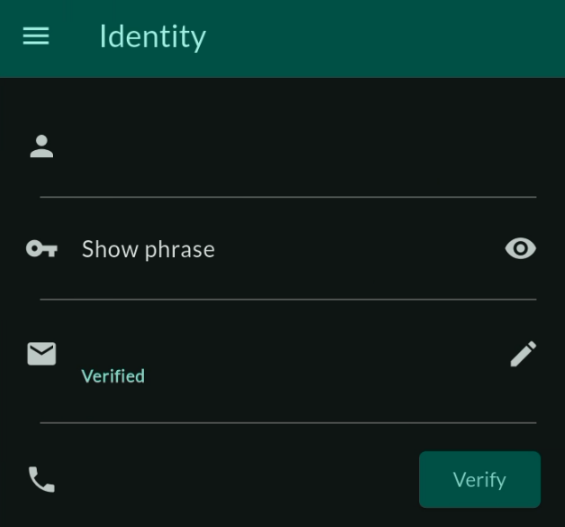
Email Verification
Email verification is the first step in securing your ThreeFold Connect account and enables important communications and recovery options.
Setting Up Email Verification
- Enter Email Address: During account setup or in verification settings, enter your email address
- Receive Verification Code: Check your email for a verification code from ThreeFold
- Enter Verification Code: Input the 6-digit code in the ThreeFold Connect app
- Confirm Verification: Your email will be marked as verified with a green checkmark
Email Verification Process
Initial Setup
- Email Input: Enter a valid email address you have access to
- Format Validation: App validates email format before sending code
- Code Generation: System generates a unique 6-digit verification code
- Email Delivery: Verification email sent to provided address
Code Entry
- Time Limit: Verification codes expire after 10 minutes
- Attempt Limits: Limited number of code entry attempts
- Resend Option: Request new code if original expires
- Countdown Timer: Visual countdown showing code validity period
Email Verification Features
- Security: Ensures you have access to the provided email address
- Recovery: Enables account recovery options through email
- Notifications: Allows important security notifications via email
- Communication: Enables official communications from ThreeFold
- Two-Factor Authentication: Email can be used as 2FA method
Phone Verification
Phone verification adds an additional layer of security through SMS verification and enables mobile-based authentication features.
Setting Up Phone Verification
- Enter Phone Number: Provide your mobile phone number with correct country code
- Number Validation: App validates phone number format
- Receive SMS Code: You'll receive an SMS with a 6-digit verification code
- Enter SMS Code: Input the code in the app within the 2-minute time limit
- Confirm Verification: Your phone number will be verified and marked as confirmed
Phone Verification Process
Phone Number Entry
- Country Code Selection: Choose correct country code from dropdown
- Number Format: Enter phone number in local format
- Validation: System validates number format and carrier compatibility
- SMS Capability Check: Verifies number can receive SMS messages
SMS Code Delivery
- Code Generation: Unique 6-digit SMS verification code
- Delivery Time: SMS typically delivered within 30 seconds
- Retry Logic: Automatic retry for failed SMS delivery
- Cooldown Period: 2-minute wait between SMS requests to prevent spam
Phone Verification Benefits
- Two-Factor Authentication: Enables SMS-based 2FA for enhanced security
- Account Recovery: Provides additional recovery method via SMS
- Security Alerts: Receive critical security notifications via SMS
- Identity Confirmation: Strengthens overall identity verification
- Mobile Integration: Enables mobile-specific features and notifications
Identity Verification (KYC)
The integrated Identity Verification system is part of the wallet onboarding process and provides comprehensive Know Your Customer (KYC) verification directly within the ThreeFold Connect app.
New Integrated KYC Process
Unlike previous external verification systems, the new KYC process is fully integrated into the ThreeFold Connect app:
- In-App Experience: Complete verification without leaving the app
- Wallet Integration: KYC is part of wallet setup and onboarding
- Real-time Processing: Immediate feedback and status updates
- Enhanced Security: Secure document handling and processing
- User-Friendly Interface: Streamlined verification workflow
When KYC is Required
Identity verification is required for:
- Wallet Onboarding: Setting up your ThreeFold wallet
- Higher Transaction Limits: Accessing increased transaction limits
- Advanced Features: Using premium app features
- Regulatory Compliance: Meeting financial service requirements
- Enhanced Security: Maximum account protection
KYC Verification Process
Step 1: Initiate Verification
- Access Verification: Navigate to Identity Verification in app settings
- Review Requirements: Read verification requirements and supported documents
- Prepare Documents: Gather required identification documents
- Start Process: Begin the verification workflow
Step 2: Document Selection
Supported Documents:
- Passport: International passport (preferred)
- National ID Card: Government-issued national identification
- Driver's License: Valid driver's license with photo
- Residence Permit: For non-citizens with valid permits
Document Requirements:
- Must be current and not expired
- Government-issued with official seals/stamps
- Clear, readable text and photos
- No damage, alterations, or tampering
Step 3: Document Photography
Photo Capture Process:
- Document Positioning: Place document on flat, well-lit surface
- Camera Alignment: Align document within camera frame guidelines
- Quality Check: Ensure all text and details are clearly visible
- Multiple Angles: Capture front and back (if applicable)
- Review Photos: Check photo quality before proceeding
Photography Best Practices:
- Lighting: Use natural light or bright, even lighting
- Stability: Keep device steady to avoid motion blur
- Distance: Maintain proper distance for full document capture
- Angle: Capture document straight-on, not at angles
- Background: Use plain, contrasting background
Step 4: Biometric Verification
Selfie Capture:
- Face Positioning: Center your face within the frame guidelines
- Lighting Check: Ensure face is well-lit and clearly visible
- Expression: Maintain neutral expression, eyes open
- Photo Capture: Take clear, high-quality selfie
- Biometric Matching: System compares selfie with document photo
Liveness Detection:
- Movement Verification: May require head movements or blinking
- Real-time Capture: Ensures live person, not photo or video
- Anti-Spoofing: Advanced detection of fake or manipulated images
Step 5: Information Verification
Data Extraction:
- OCR Processing: Optical Character Recognition extracts document data
- Information Display: Extracted information shown for review
- Manual Correction: Option to correct any misread information
- Verification Confirmation: Confirm all information is accurate
Security Checks:
- Document Authenticity: Verification of document security features
- Cross-Reference: Information cross-checked against databases
- Fraud Detection: Advanced algorithms detect fraudulent documents
- Risk Assessment: Overall risk evaluation of verification attempt
Step 6: Processing and Results
Processing Timeline:
- Automated Review: Initial automated processing (minutes)
- Manual Review: Human review if required (1-3 business days)
- Status Updates: Real-time updates on verification progress
- Final Decision: Approval or rejection notification
Verification Results
Successful Verification
Immediate Benefits:
- Verification Badge: KYC verified status displayed in app
- Enhanced Features: Access to advanced app functionality
- Higher Limits: Increased transaction and wallet limits
- Full Access: Complete access to all ThreeFold Connect features
Long-term Benefits:
- Regulatory Compliance: Meets financial service requirements
- Enhanced Trust: Higher trust level for transactions and interactions
- Priority Support: Access to priority customer support
- Future Features: Early access to new features requiring verification
Verification Issues or Rejection
Common Rejection Reasons:
- Poor Image Quality: Blurry, dark, or unclear document photos
- Expired Documents: Using expired identification documents
- Incomplete Capture: Parts of document cut off or not visible
- Mismatched Information: Inconsistencies between document and selfie
- Invalid Documents: Unsupported or fraudulent document types
- Technical Issues: Problems with photo capture or processing
Resolution Process:
- Rejection Notification: Detailed explanation of rejection reasons
- Retry Option: Ability to restart verification with corrections
- Support Guidance: Specific instructions for addressing issues
- Document Assistance: Help with proper document photography
- Manual Review: Option for human review in complex cases
Verification Management
Checking Verification Status
Status Dashboard:
- Verification Overview: Central view of all verification statuses
- Progress Indicators: Visual progress bars for ongoing verifications
- Status Icons: Clear icons showing completed, pending, or failed verifications
- Last Updated: Timestamps showing when status was last updated
Detailed Status Information:
- Email Status: Verified/unverified with verification date
- Phone Status: Verified/unverified with verification date
- Identity Status: KYC verification level and completion date
- Document Status: Individual document verification results
Managing Verified Information
Updating Email Address
- Change Request: Navigate to email settings and request change
- Security Verification: Confirm identity through existing verification methods
- New Email Verification: Complete verification process for new email
- Transition Period: Grace period where both emails may be active
- Confirmation: New email becomes primary after verification
Updating Phone Number
- Phone Change Request: Request phone number update in settings
- Current Phone Verification: Verify identity using current phone
- New Phone Verification: Complete SMS verification for new number
- Cooldown Period: Mandatory wait period between phone changes
- Security Review: Additional security checks for frequent changes
Re-verification Requirements
When Re-verification is Needed:
- Document Expiration: When ID documents expire
- Significant Account Changes: Major changes to account information
- Security Incidents: After security-related issues
- Regulatory Updates: When regulations require updated verification
- System Upgrades: When verification systems are enhanced
Advanced Verification Features
Enhanced Security Options
Multi-Factor Verification:
- Combined Methods: Email + Phone + Biometric verification
- Risk-Based Authentication: Additional verification for high-risk activities
- Device Binding: Verification tied to specific trusted devices
- Location Verification: Geographic verification for enhanced security
Continuous Verification:
- Behavioral Analysis: Ongoing analysis of user behavior patterns
- Device Fingerprinting: Unique device identification for security
- Session Monitoring: Continuous monitoring of app usage sessions
- Anomaly Detection: Automatic detection of unusual activity patterns
Integration with Wallet Features
Wallet Onboarding:
- Seamless Integration: KYC integrated into wallet setup process
- Progressive Verification: Gradual verification as wallet features are accessed
- Limit Management: Verification level determines wallet limits
- Feature Unlocking: Advanced wallet features unlocked with verification
Transaction Verification:
- Transaction Limits: Verification level affects transaction limits
- High-Value Transactions: Additional verification for large transactions
- Cross-Border Transactions: Enhanced verification for international transfers
- Merchant Verification: Special verification for merchant accounts
Troubleshooting Verification
Email Verification Issues
Email Not Received
Troubleshooting Steps:
- Check Spam/Junk Folders: Verification emails may be filtered
- Verify Email Address: Ensure email address is entered correctly
- Check Email Provider: Some providers block automated emails
- Whitelist Sender: Add ThreeFold email addresses to safe sender list
- Try Alternative Email: Use different email provider if issues persist
Technical Solutions:
- Resend Code: Request new verification code
- Email Provider Settings: Check email provider security settings
- Corporate Filters: Check corporate email filters and firewalls
- Email Client Issues: Try accessing email through web interface
Email Code Issues
Common Problems:
- Code Expiry: Verification codes expire after 10 minutes
- Incorrect Entry: Ensure code is entered exactly as received
- Case Sensitivity: Some codes may be case-sensitive
- Copy-Paste Errors: Manually type code instead of copying
Phone Verification Issues
SMS Not Received
Troubleshooting Steps:
- Check Network Coverage: Ensure strong cellular signal
- Verify Phone Number: Confirm number includes correct country code
- Check SMS Settings: Ensure SMS is not blocked or filtered
- Carrier Issues: Contact carrier about SMS delivery problems
- Try Different Time: SMS delivery may be delayed during peak times
Technical Solutions:
- Restart Device: Restart phone to refresh network connection
- Clear Messages App: Clear SMS app cache and data
- Check Storage: Ensure sufficient storage for SMS messages
- Network Reset: Reset network settings if problems persist
SMS Code Problems
Common Issues:
- Code Expiry: SMS codes expire after 2 minutes
- Multiple Attempts: Limited number of verification attempts
- Cooldown Period: 2-minute wait between SMS requests
- International SMS: Delays possible for international numbers
Identity Verification Issues
Document Photography Problems
Image Quality Issues:
- Lighting Problems: Use bright, even lighting without shadows
- Blur Issues: Keep device steady and ensure proper focus
- Glare/Reflections: Avoid reflective surfaces and direct light
- Partial Capture: Ensure entire document is within frame
Technical Solutions:
- Camera Permissions: Ensure app has camera access permissions
- Storage Space: Free up device storage for photo capture
- Camera App Issues: Close other camera apps before verification
- Device Restart: Restart device if camera issues persist
Document Rejection Issues
Quality Improvements:
- Better Lighting: Use natural daylight or bright indoor lighting
- Stable Surface: Place document on flat, stable surface
- Clean Lens: Clean device camera lens before photography
- Multiple Attempts: Take several photos and choose the best quality
Document Issues:
- Document Validity: Ensure documents are current and not expired
- Document Condition: Use undamaged, clean documents
- Supported Types: Verify document type is supported
- Information Matching: Ensure all information is consistent
Biometric Verification Problems
Selfie Issues:
- Lighting: Ensure face is well-lit and clearly visible
- Positioning: Center face within frame guidelines
- Expression: Maintain neutral expression with eyes open
- Background: Use plain background without distractions
Matching Problems:
- Appearance Changes: Significant appearance changes may cause issues
- Photo Quality: Ensure both document photo and selfie are high quality
- Facial Hair: Significant facial hair changes may affect matching
- Accessories: Remove glasses or accessories that obscure face
Getting Help
If you encounter persistent verification issues:
- In-App Support: Use built-in help and support features
- Documentation: Review detailed verification guides and FAQs
- Community Support: Ask questions in ThreeFold community forums
- Technical Support: Contact ThreeFold technical support team
- Live Chat: Use real-time support chat if available
- Email Support: Send detailed issue description to support email
Privacy and Security
Data Protection
Security Measures:
- Encryption: All verification data encrypted in transit and at rest
- Secure Storage: Verification documents stored in secure, compliant systems
- Access Controls: Strict access controls for verification data
- Audit Trails: Complete audit trails for all verification activities
Privacy Protection:
- Data Minimization: Only collect necessary verification data
- Purpose Limitation: Verification data used only for intended purposes
- Retention Limits: Verification data retained only as legally required
- User Rights: Users can request data access, correction, or deletion
Compliance and Standards
Regulatory Compliance:
- KYC Regulations: Compliance with international KYC requirements
- AML Standards: Anti-Money Laundering compliance
- Data Protection: GDPR and other privacy regulation compliance
- Financial Services: Compliance with financial service regulations
Security Standards:
- ISO 27001: Information security management standards
- SOC 2: Service organization control standards
- PCI DSS: Payment card industry security standards
- Industry Best Practices: Following cybersecurity best practices
Third-Party Integration
Verification Partners:
- Trusted Providers: Integration with reputable verification services
- Security Vetting: Thorough security assessment of all partners
- Data Agreements: Strict data processing agreements with partners
- Regular Audits: Regular security audits of partner systems
Data Sharing:
- Minimal Sharing: Only necessary data shared with verification partners
- Secure Transmission: All data transmitted through secure channels
- Purpose Limitation: Partner data use limited to verification purposes
- Deletion Requirements: Partners required to delete data after processing
Important Security Notes
Verification Requirement: Some ThreeFold Connect features require completed verification. Complete verification early to avoid service interruptions and access all app features.
Document Security: Never share your verification documents, codes, or personal information with others. ThreeFold will never ask for this information outside the official app or through unofficial channels.
Processing Time: Identity verification can take from minutes to 3 business days depending on complexity. Plan accordingly if you need verified status for time-sensitive activities.
Accuracy Critical: Ensure all information provided during verification is accurate and matches your official documents exactly. Inaccurate information will result in verification failure.
Privacy Protection: Your verification data is protected by advanced security measures and privacy controls. Review our privacy policy for complete details on data handling and protection.