CPU and Llama
Introduction
We present a simple guide on how to deploy large language models on the grid using CPU. For this guide, we will be deploying Llama on a full VM using OpenWebUI bundled with Ollama support.
Llama is a large language model trained by Meta AI. It is an open-source model, meaning that it is free to use and customize for various applications. This LLM is designed to be a more conversational AI allowing users to engage in natural-sounding conversations. Llama is trained on a massive dataset of text from the internet and can generate responses to a wide range of topics and questions.
Ollama is an open-source project that allows users to run large language models (LLMs) on their local machine.
OpenWebUI is one of many front ends for Ollama, providing a convenient and user friendly way to load weights and chat with the bot.
Prerequisites
- A TFChain account
- TFT in your TFChain account
Deploy a Full VM
We start by deploying a full VM on the ThreeFold Dashboard. The more cores we set to the machine, the faster the model will be.
- On the Threefold Dashboard, go to the full virtual machine deployment page
- Deploy a full VM (Ubuntu 22.04) with only
Wireguardas the network- Vcores: 8 vcores
- MB of RAM: 4096 GB
- GB of storage: 100 GB
- After deployment, set the Wireguard configurations
- Connect to the VM via SSH
-
ssh root@VM_Wireguard_Address
-
Preparing the VM
We prepare the full VM to run Llama.
- Install Docker
-
wget -O docker.sh get.docker.com
bash docker.sh
-
Setting OpenWebUI
We now install OpenWebUI with bundled Ollama support. Note that you might need to use another port than 3000 if this port is already in use on your local machine.
- For CPU only
docker run -d -p 3000:8080 -v ollama:/root/.ollama -v open-webui:/app/backend/data --name open-webui --restart always ghcr.io/open-webui/open-webui:ollama - Once the container is fully loaded and running, go to your browser to access OpenWebUI using the Wireguard address:
-
10.20.4.2:3000
-
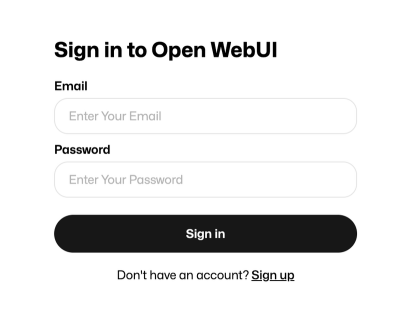
You should now see the OpenWebUI page. You can register by entering your email and setting a password. This information will stay on the machine running OpenWebUI.
Pull a Model
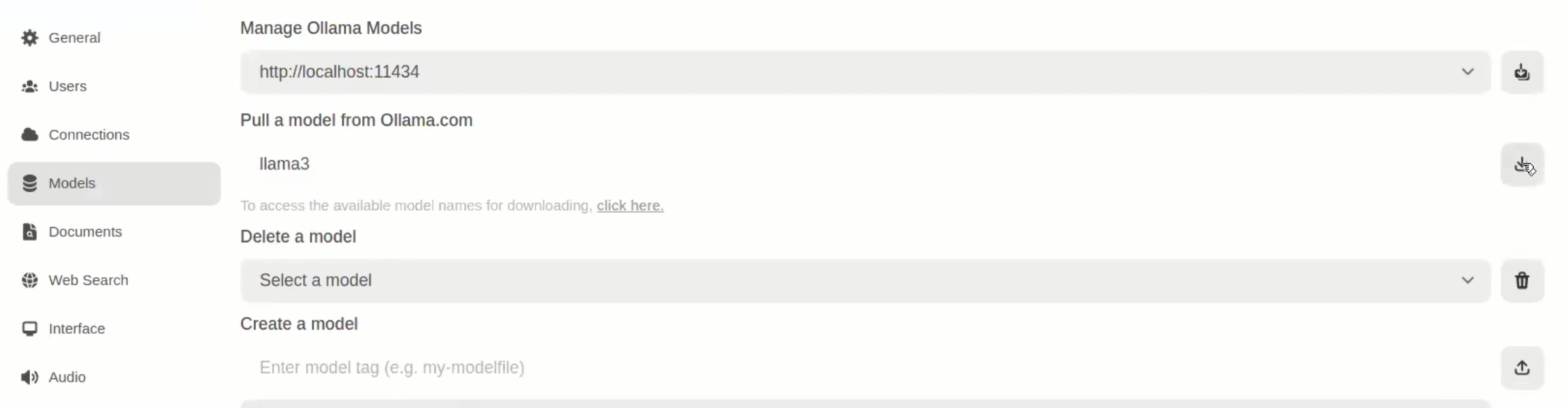
Once you've access OpenWebUI, you need to download a LLM model before using it.
- Click on the bottom left button displaying your username
- Click on
Settings, thenAdmin SettingsandModels - Under
Pull a model from Ollama.com, enter the LLM model you want to use- In our case we will use
llama3
- In our case we will use
- Click on the button on the right to pull the image
Using Llama
Let's now use Llama!
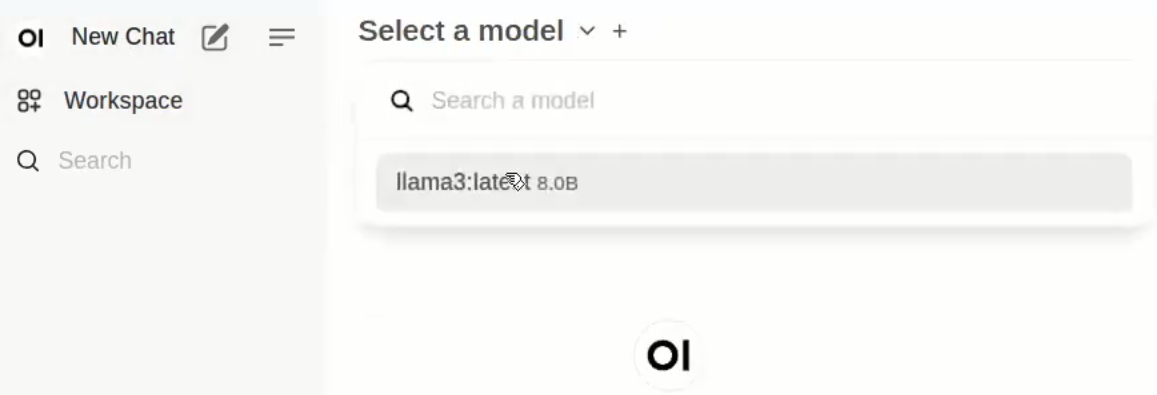
- Click on
New Chaton the top left corner - Click on
Select a modeland select the model you downloaded- You can click on
Set as defaultfor convenience
- You can click on
- You can now
Send a Messageto Llama and interact with it!
That's it. You now have a running LLM instance on the grid.
References
For any advanced configurations, you may refer to the OpenWebUI documentation.