How to Use GPU on the Grid
Introduction
This guide provides step-by-step instructions for deploying and using GPU resources on the ThreeFold Grid. You'll learn how to rent a dedicated GPU node, deploy a virtual machine, and install the necessary GPU drivers.
Prerequisites
- Access to the ThreeFold Dashboard
- Basic knowledge of SSH and Linux command line
- Understanding of your GPU requirements (AMD or NVIDIA)
Step 1: Rent a GPU Node
Find Available GPU Nodes
- Navigate to the ThreeFold Dashboard explorer
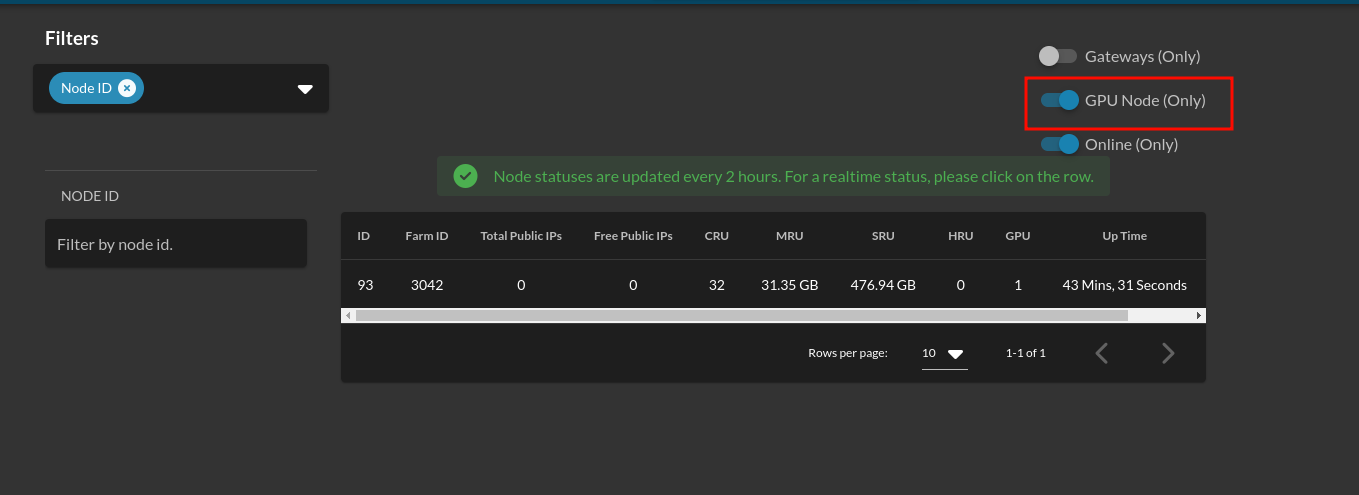
- Enable the GPU Node (only) option to filter nodes with GPU capabilities
Reserve Your Node
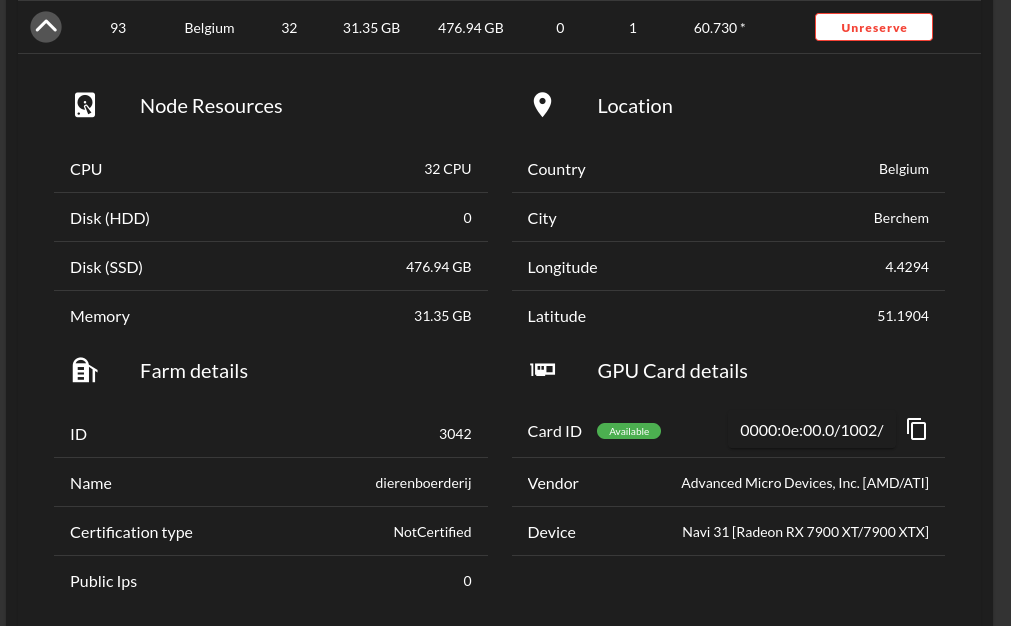
- Once you've identified a suitable GPU node, navigate to the Dedicated Node page
- Complete the rental process for your selected node
Step 2: Deploy a Virtual Machine with GPU
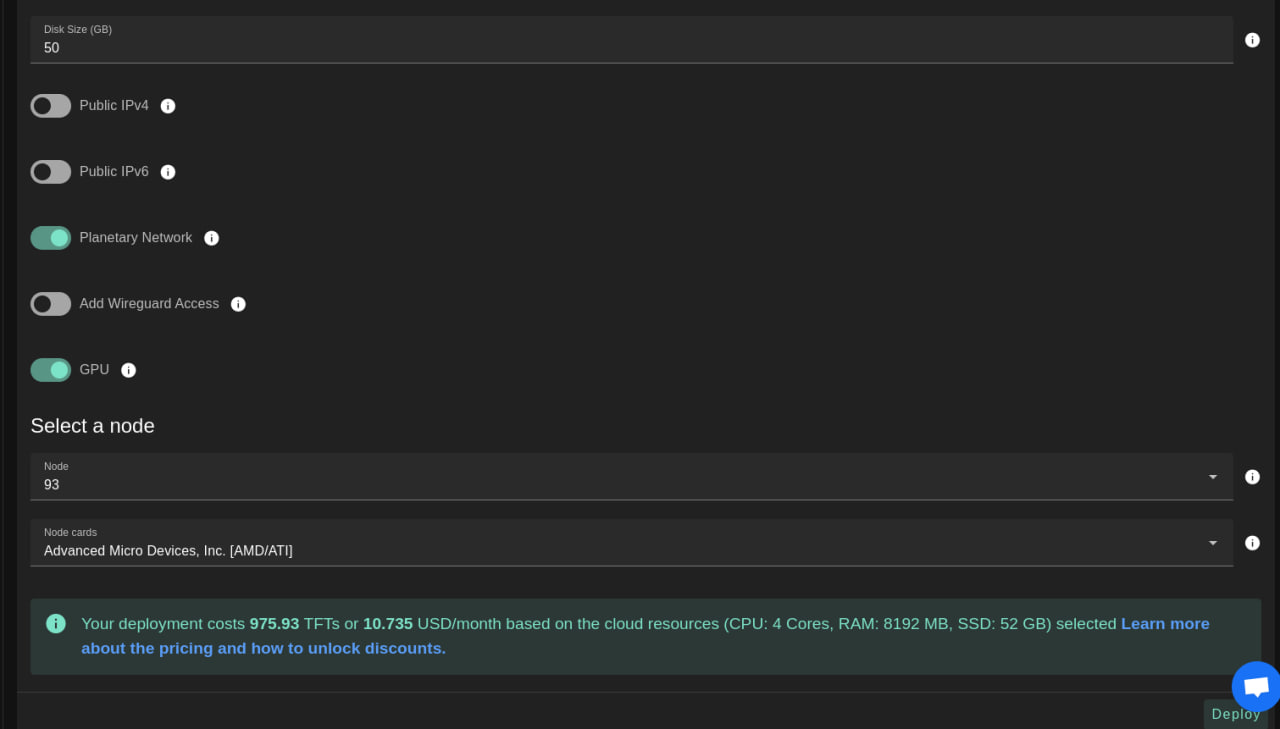
After successfully renting a GPU node, deploy a virtual machine on your dedicated node using one of the following methods:
- ThreeFold Dashboard (recommended for beginners)
- TypeScript Client
- Terraform
- Other supported deployment tools
Step 3: Install GPU Drivers
System Preparation
- SSH into your deployed virtual machine
- Update your system to ensure compatibility:
dpkg --add-architecture i386
sudo apt-get update
sudo apt-get dist-upgrade
sudo reboot
Identify Your GPU Hardware
Before downloading drivers, identify your GPU specifications using either:
- ThreeFold Dashboard: Check node details in your dashboard
- Command line tools:
lspci | grep VGA
lshw -c video
Download GPU Drivers
Download the appropriate driver for your GPU:
- AMD GPUs: Visit AMD Support
- NVIDIA GPUs: Visit NVIDIA Driver Downloads
Use wget to download the driver package to your VM.
AMD GPU Installation
- Install the downloaded AMD driver package (replace
<VERSION>with your specific version):
sudo apt-get install ./amdgpu-install_<VERSION>.deb
amdgpu-install --usecase="dkms,graphics,opencl,hip,rocm,rocmdev,opencl,hiplibsdk,mllib,mlsdk" --opencl=rocr --vulkan=pro --opengl=mesa
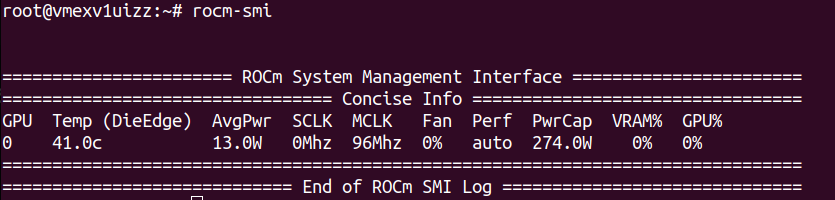
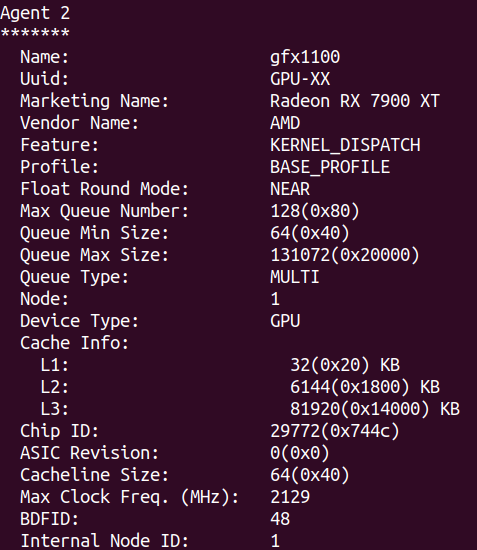
- Verify the installation:
rocm-smi
rocminfo
- Expected output should resemble:
NVIDIA GPU Installation
For NVIDIA GPUs, the installation process is more straightforward:
-
Follow the comprehensive guide: NVIDIA Drivers on Ubuntu 20.04
-
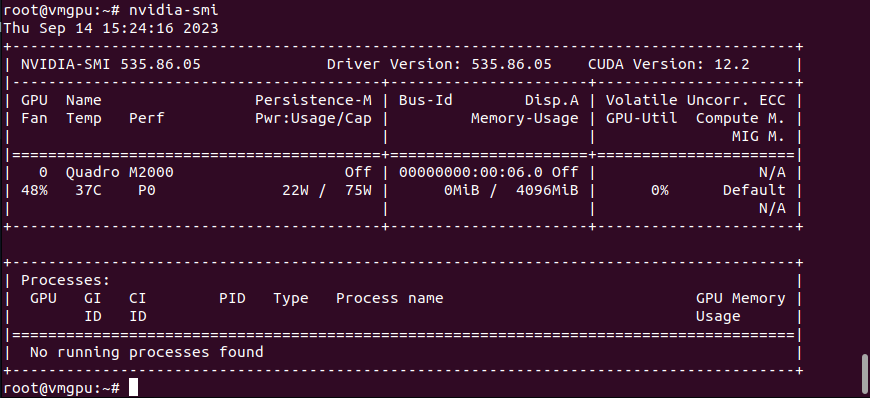
Verify the installation using:
nvidia-smi
- Expected output:
Alternative: AI Model Installation
For users interested in AI workloads, consider trying InvokeAI, which can help with driver installation and provide an AI-ready environment.
Troubleshooting
Recommended System Configuration
Operating System: Ubuntu 22.04.2 LTS (GNU/Linux 5.18.13-051813-generic x86_64)
Useful Resources
- AMD Driver Installation: Official AMD GPU Install Documentation
- Kernel Version Management:
Next Steps
Once your GPU is successfully installed and verified, you can:
- Deploy AI/ML workloads
- Run GPU-accelerated applications
- Explore ThreeFold's GPU-specific documentation for advanced use cases
For additional GPU support resources, consult the GPU Table of Contents.